Install Docker
Get Docker running on macOS, Linux, or Windows, confirm it with hello-world, and dodge the licensing and resource traps that trip people up.
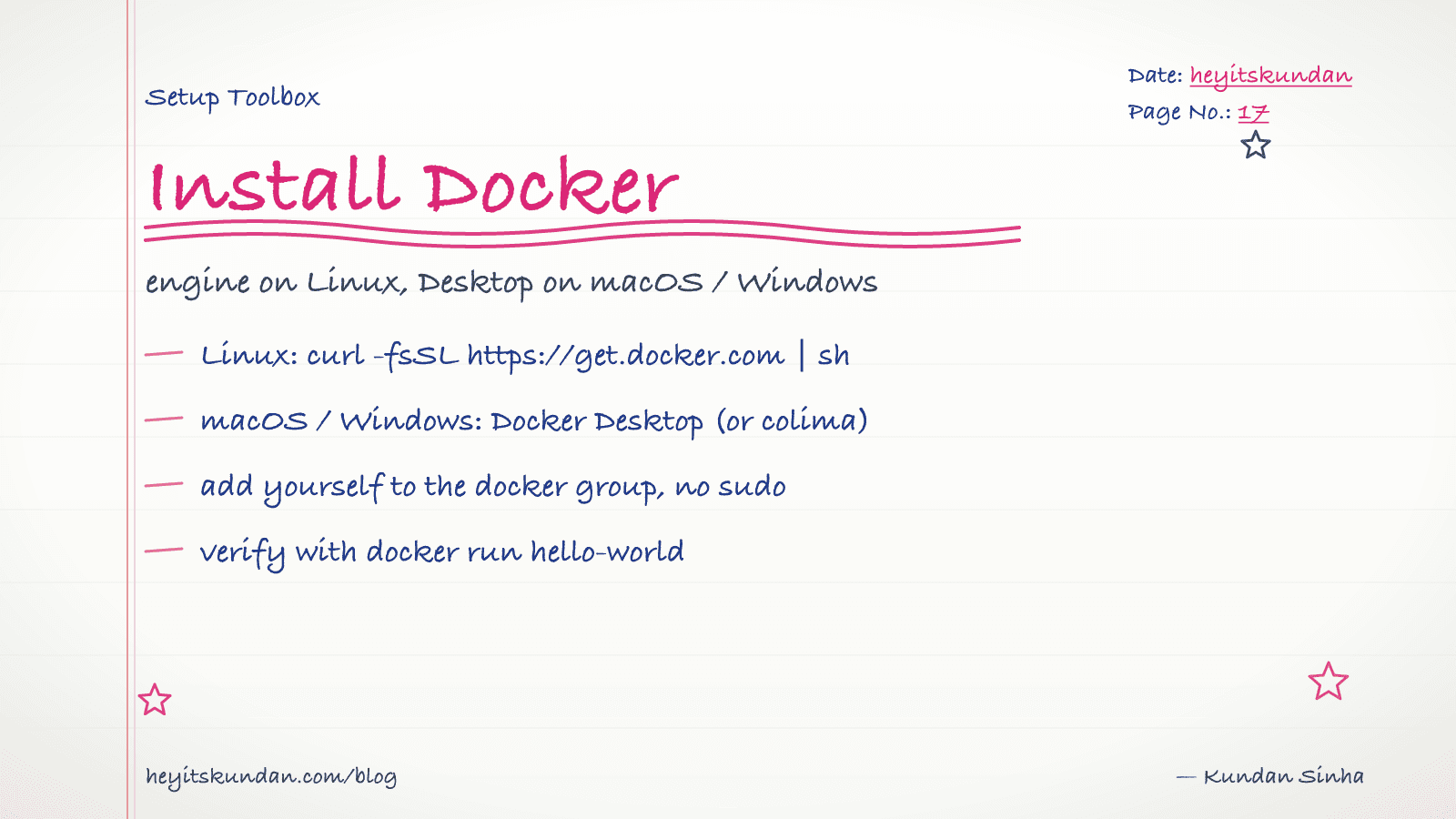
Every backend tutorial you'll ever open assumes Docker is already there. So let's put it there.
This is post 5 of 10 in the Setup Toolbox series. Quick map before the commands: on macOS and Windows you install Docker Desktop, which is a GUI plus a small Linux VM running Docker Engine inside it. On Linux you install Docker Engine straight onto the host. Either way you get the same docker CLI, so the rest of the toolbox doesn't care which one you ran.
macOS
Homebrew does it. Docker Desktop is a GUI app, so it's a cask.
# install docker desktop via homebrew

brew install --cask docker
No Homebrew yet? Start with Install Homebrew, then come back.
Open the app once from /Applications. That first launch starts the engine and asks for the permissions the install needs. After that, docker is on your PATH and you can forget the GUI exists.
On Apple Silicon, grab the Apple Silicon build. Homebrew already picks the right one, so you don't have to think about it. A few older images are amd64-only and run through Rosetta emulation, which is slower. When you hit one, add --platform linux/amd64 to your docker run.
Linux
Don't reach for apt install docker.io. That's an older fork. Use Docker's official repo instead, and the convenience script sorts it out for most distros:
# install docker engine on linux via the official script

curl -fsSL https://get.docker.com | sh
Now add yourself to the docker group so you're not typing sudo in front of every command. Log out and back in for it to stick.
# allow your user to run docker without sudo

sudo usermod -aG docker $USER
Windows
Pull Docker Desktop from docker.com/products/docker-desktop, or let winget do it:
# install docker desktop on windows

winget install -e --id Docker.DockerDesktop
Docker Desktop on Windows runs on WSL2 by default. If WSL2 isn't there, the installer offers to set it up for you.
The licensing bit nobody reads
Docker Desktop is free for personal use, education, open-source projects, and small businesses (under 250 employees and $10M revenue). Bigger companies need a paid subscription. Linux sidesteps all of this: Docker Engine itself is open-source under the Apache 2.0 license, so no Docker Desktop and no licensing question. If your employer bans Docker Desktop, colima (macOS) or Rancher Desktop drop right in.
Verify
# run the hello-world image to check the engine works

docker run hello-world
First run pulls the image (a few MB), runs it, prints a confirmation, and exits. See Cannot connect to the Docker daemon? The engine isn't running. Open Docker Desktop, or run sudo systemctl start docker on Linux.
The gotchas that'll bite you later
- Resource limits on Docker Desktop: defaults are 2 CPUs, 4 GB RAM. Real workloads (Postgres plus a couple of services) blow past that fast. Bump to 4 CPUs and 8 GB minimum in Settings → Resources.
- Disk usage creeps up: images, stopped containers, and dangling volumes pile up quietly.
docker system prune -a --volumesreclaims the space. Run it monthly. docker-composevsdocker compose: V2 is built into the Docker CLI asdocker compose(no hyphen). Old tutorials saydocker-compose, the V1 binary. Both still work, but V2 is the one you want.- File-sharing performance on macOS: bind-mounts from host to container are slow on macOS by default. For dev work, use the
:cachedor:delegatedflags, or switch to named volumes.
With docker run hello-world going, you've got the base for running databases, services, and ML runtimes locally. Post 6 builds on it.
From the dictionary
Terms used in this post
Quick reference for the term you met above. Each one comes from the AI dictionary.
- Machine LearningML
- A subset of AI where the system learns patterns from data instead of following hand-written rules. The output is a model — a set of learned numbers that maps inputs to outputs. Spam filters, recommendation systems, and credit-risk scorers are classical ML.
- e.g. Gmail's spam filter learns which emails you mark as junk and updates its model — that's machine learning, not a rule someone wrote.
Rate this article
How helpful did you find this?
- 01
Install Homebrew
February 15, 2026
- 02
Install Git
February 16, 2026
- 03
Install Node.js and npm without future regret
February 17, 2026
- 04
Install Python the right way, with uv
February 18, 2026
- 05
Install Docker
February 19, 2026
- 06
Install Ollama
February 20, 2026
- 07
Install llama.cpp
February 21, 2026
- 08
Install LM Studio
February 22, 2026
- 09
Install the Anthropic SDK
February 23, 2026
- 10
Install the OpenAI SDK
February 23, 2026
Newsletter
Get new articles in your inbox
AI engineering, LLM systems, and software architecture — no filler.
No spam. Unsubscribe any time.
Discussion
Comments
Leave a note about the article, architecture choices, or what you would build next.
Loading comments...