Install Node.js and npm without future regret
Install Node and npm through a version manager so you can switch versions per project. fnm is my pick, with nvm and Volta as alternatives.
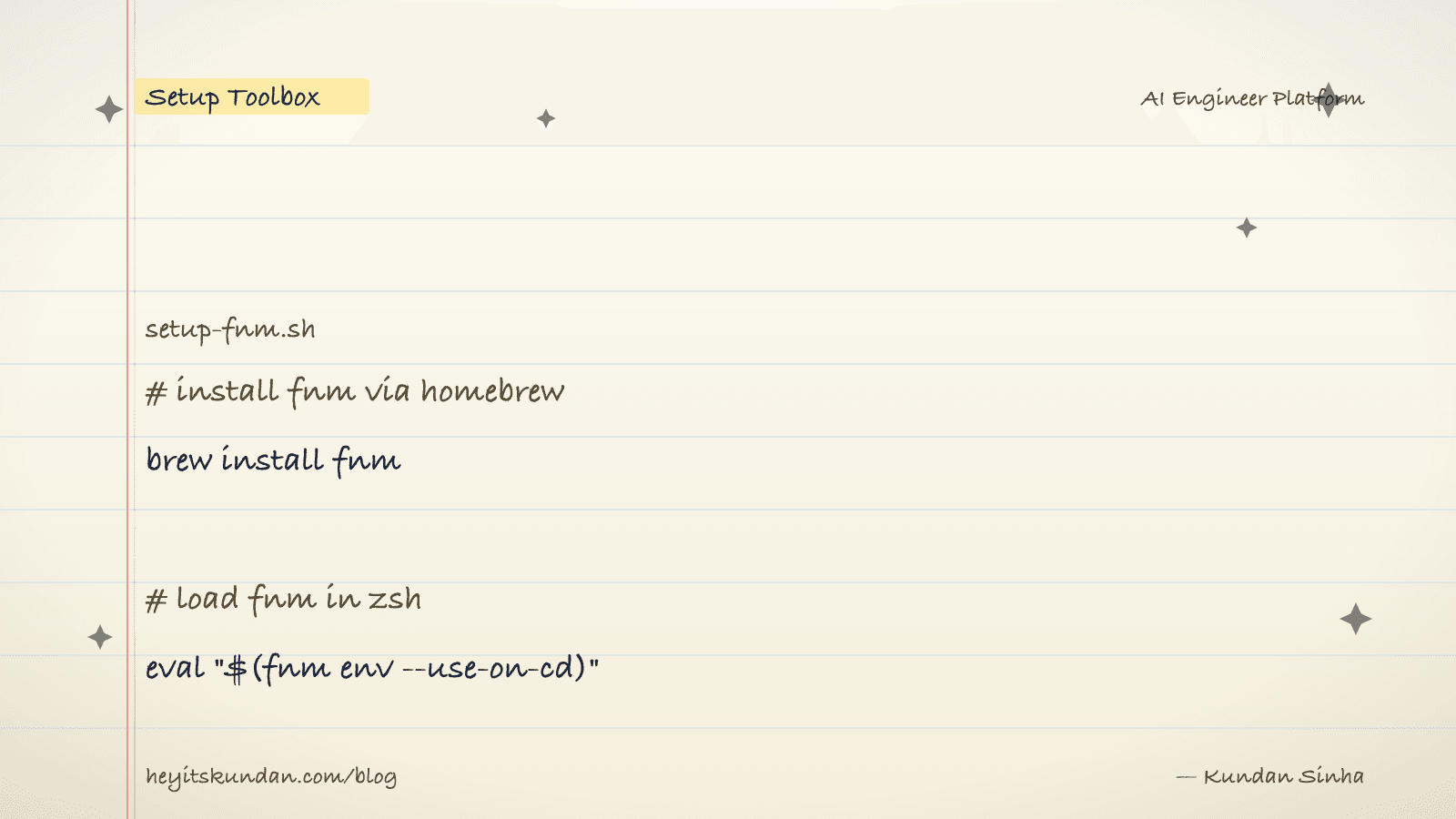
Skip the official .pkg or .msi installer. I mean it.
This is post 3 of 10 in the Setup Toolbox series. Here's the problem with a global system Node: every JS project pins a different version, and the day you join a team is the day a single system Node starts fighting you. A version manager fixes that. You switch Node versions per project and move on with your life. This post covers fnm, which is my pick, with notes on nvm and Volta.
One thing up front. npm comes bundled with Node, so installing Node installs npm. There's no separate step.
macOS and Linux: fnm
Fnm (Fast Node Manager) is written in Rust, it's fast, and it runs on macOS, Linux, and Windows.
# install fnm via homebrew on macos

brew install fnm
On Linux:
# install fnm via the official script on linux

curl -fsSL https://fnm.vercel.app/install | bash
After install, add the shell hook (zsh or bash):
# load fnm in your shell

echo 'eval "$(fnm env --use-on-cd)"' >> ~/.zshrc && source ~/.zshrc
Now install a Node version and set it as your default:
# install the current LTS

fnm install --lts
# set the LTS as default for new shells

fnm default lts-latest
If you don't have Homebrew yet, see Install Homebrew.
Windows
Use fnm via winget:
# install fnm on windows via winget

winget install Schniz.fnm
Add the PowerShell hook (one-time):
# add fnm hook to powershell profile

fnm env --use-on-cd | Out-String | Invoke-Expression
For a permanent setup, add the same line to $PROFILE.
Alternatives
- nvm: bash-only, slower than fnm, and no native Windows support (use nvm-windows there). It's mature and the most documented.
- Volta: handles Node, npm, yarn, and pnpm. Pins versions per project via
package.json. Good for monorepos. - System install: possible via brew (
brew install node) or apt. You'll regret it the first time one project pins Node 18 and another pins 22.
Verify
# check node and npm versions

node -v && npm -v
You should see two version strings, something like v22.4.0 and 10.8.1. The npm version trails Node major versions. That's normal, not a bug.
Common gotchas
- Permission errors on
npm install -g: the classic sign of a system Node. The fix is to switch to a version manager, notsudo npm install. Reach forsudoand you make the problem permanent. .nvmrc/.node-versionfiles: these are project-pinned Node versions. Withfnm env --use-on-cd,cd-ing into the project auto-switches for you.- Corepack: Node 16+ ships with
corepack, which manages yarn and pnpm. Turn it on withcorepack enable. You don't neednpm install -g yarnanymore.
With Node and npm working, you're set to install JS-based tools (Anthropic SDK, OpenAI SDK, build tools) without polluting a global system path.
Rate this article
How helpful did you find this?
- 01
Install Homebrew
February 15, 2026
- 02
Install Git
February 16, 2026
- 03
Install Node.js and npm without future regret
February 17, 2026
- 04
Install Python the right way, with uv
February 18, 2026
- 05
Install Docker
February 19, 2026
- 06
Install Ollama
February 20, 2026
- 07
Install llama.cpp
February 21, 2026
- 08
Install LM Studio
February 22, 2026
- 09
Install the Anthropic SDK
February 23, 2026
- 10
Install the OpenAI SDK
February 23, 2026
Newsletter
Get new articles in your inbox
AI engineering, LLM systems, and software architecture — no filler.
No spam. Unsubscribe any time.
Discussion
Comments
Leave a note about the article, architecture choices, or what you would build next.
Loading comments...