Install Homebrew
The one-line Homebrew installer for macOS, Linux, and WSL, plus the PATH step Apple Silicon needs and a quick way to check it actually took.
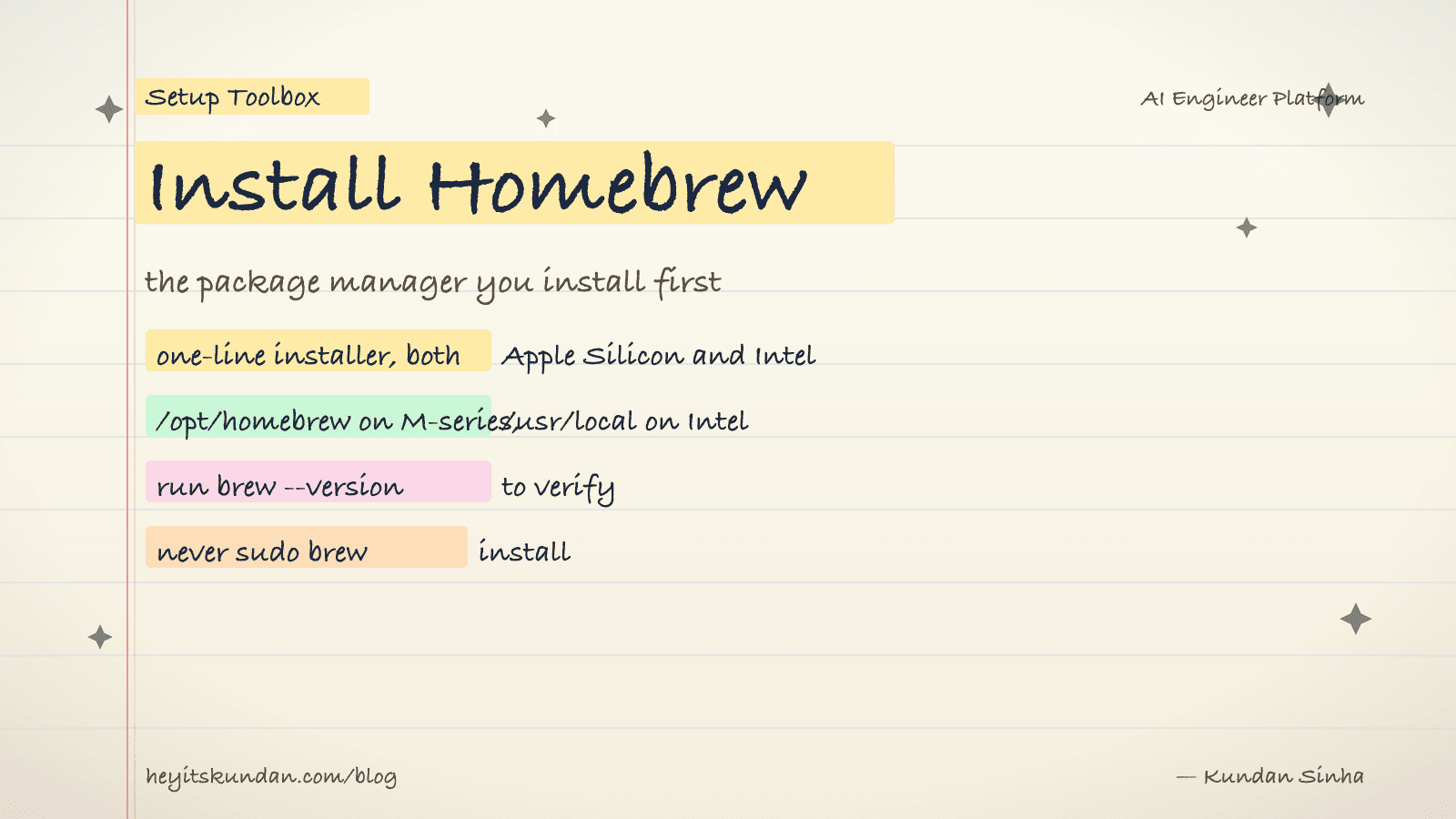
On a fresh Mac, Homebrew is the first thing I install. Everything else waits.
This is post 1 of 10 in the Setup Toolbox series, and it's the prerequisite for most of what follows. The other posts assume brew is already on your PATH. Linux and Windows folks, your notes are near the bottom.
macOS (Apple Silicon and Intel)
The official installer is one shell command. It writes to /opt/homebrew on Apple Silicon and /usr/local on Intel.
# install homebrew using the official one-line script

/bin/bash -c "$(curl -fsSL https://raw.githubusercontent.com/Homebrew/install/HEAD/install.sh)"
When it finishes, the script prints two eval lines for shell setup. On Apple Silicon you have to add brew to your PATH yourself. The installer won't touch your shell config for you.
# add brew to PATH on apple silicon (zsh)

echo 'eval "$(/opt/homebrew/bin/brew shellenv)"' >> ~/.zprofile && eval "$(/opt/homebrew/bin/brew shellenv)"
On bash, swap ~/.zprofile for ~/.bash_profile. On Intel Macs the path is /usr/local/bin/brew.
Linux
Homebrew runs on Linux too. It's officially supported, sometimes called Linuxbrew. Same installer, different default home: /home/linuxbrew/.linuxbrew.
# install homebrew on linux

/bin/bash -c "$(curl -fsSL https://raw.githubusercontent.com/Homebrew/install/HEAD/install.sh)"
# add brew to PATH on linux

echo 'eval "$(/home/linuxbrew/.linuxbrew/bin/brew shellenv)"' >> ~/.bashrc && eval "$(/home/linuxbrew/.linuxbrew/bin/brew shellenv)"
On Debian or Ubuntu you'll want build-essential, procps, curl, file, and git in place first. Honestly, for most engineering work on Linux I lean on the native package manager (apt, dnf) and only reach for brew when something isn't packaged upstream.
Windows
There's no native Homebrew for Windows. You've got two ways in:
- WSL2 (recommended): install Ubuntu through WSL, then run the Linux steps above inside WSL.
- winget or Scoop: native Windows package managers.
winget install <package>covers most of what you'd otherwise want brew for.
Verify
# check that brew is on PATH and report version

brew --version
You should get something like Homebrew 4.x.x. If it says command not found, your shell never picked up the shellenv line. Open a new terminal or run source ~/.zprofile.
Common gotchas
- Apple Silicon path: brew lives at
/opt/homebrew, not/usr/local. Any tutorial that assumes/usr/local/bin/brewis out of date. - Permissions: never
sudo brew install. Brew owns its prefix, andsudoleaves behind files it can't manage later. - Slow installs: brew rebuilds bottles from source when no binary exists for your OS version. If a fresh install is grinding for 20 minutes, your macOS version may have aged out of bottle support. Upgrade macOS before fighting brew.
- Doctor: run
brew doctorafter install. It flags PATH conflicts, stray symlinks from an old install, and Xcode CLT issues.
Once brew --version answers, you're set. Everything else is brew install <pkg> from here.
Rate this article
How helpful did you find this?
- 01
Install Homebrew
February 15, 2026
- 02
Install Git
February 16, 2026
- 03
Install Node.js and npm without future regret
February 17, 2026
- 04
Install Python the right way, with uv
February 18, 2026
- 05
Install Docker
February 19, 2026
- 06
Install Ollama
February 20, 2026
- 07
Install llama.cpp
February 21, 2026
- 08
Install LM Studio
February 22, 2026
- 09
Install the Anthropic SDK
February 23, 2026
- 10
Install the OpenAI SDK
February 23, 2026
Newsletter
Get new articles in your inbox
AI engineering, LLM systems, and software architecture — no filler.
No spam. Unsubscribe any time.
Discussion
Comments
Leave a note about the article, architecture choices, or what you would build next.
Loading comments...